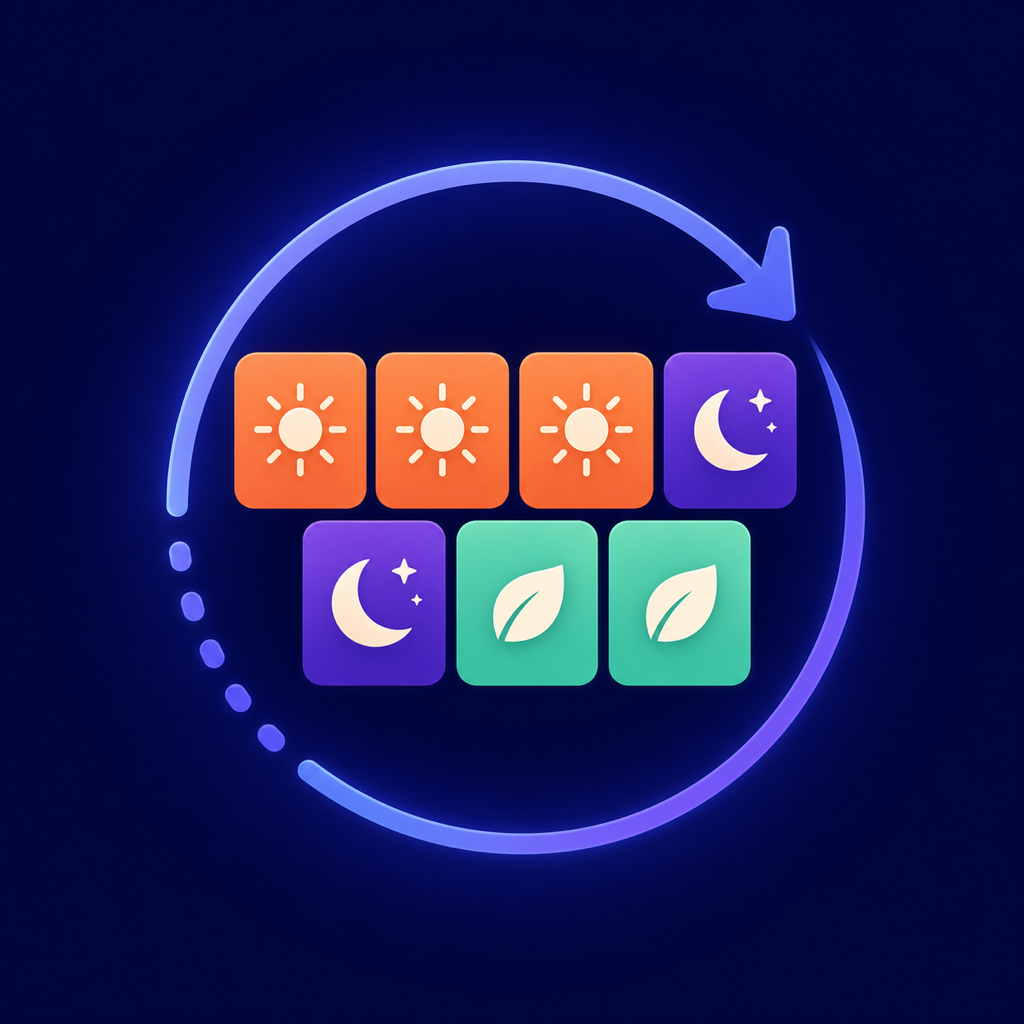
Set the starting date correctly
Choose a date you know matches day one of the pattern shown in setup. RotaGrid repeats the cycle forward and backward from that date.
Change one date
Tap a date in the calendar, then choose Day, Night, or Off. Use the restore button to return that date to the repeating pattern.
Edit the whole rotation
Open Schedule Settings from the button in the upper-right. You can change the first pattern day, choose a common rotation, edit every step in the cycle, and set day and night shift times.
Start over or delete local data
Open Schedule Settings and choose Start over. You can also delete RotaGrid from your iPhone to remove all locally stored app data.
Contact
For app issues, feedback, or feature requests, contact @davidbalderston on X. Include your iPhone model, iOS version, and a short description of what you expected and what happened.
Read the RotaGrid Privacy Policy.